Showing posts with label tips n tricks. Show all posts
Showing posts with label tips n tricks. Show all posts
Saturday, July 16, 2011
Color Wheel For Choosing Matching Palate Colors
This is a pretty useful tool to achieve matching or cohesive colours for navigation menu, background, hyperlinks, header etc. Instructions:- Simply paste the six digit colour code in the form below without the hash (#) sign and then hit Update
- The matching colour codes will appear inside the four boxes at the right side.
- You can then copy the hex values and start using them!
Sunday, July 10, 2011

W i n d o w s
1. Using Notepad or some other text editor, open the file named hosts,
which is located in the following directory:
- Windows XP and Vista: C:\WINDOWS\SYSTEM32\DRIVERS\ETC
- Windows 2000: C:\WINNT\SYSTEM32\DRIVERS\ETC
- Windows 98\ME: C:\WINDOWS\
2. Add the following on its own line in the hosts file:
127.0.0.1 ebay.com games.yahoo.com evilex.com
Replacing the sites listed with the domains that you want to block.
Read Complete Article : →
Monday, July 4, 2011
These are the Top Flirting Lines that Boys always says


 Read below the top flirting lines said by boys in conversation with Girls / G.F / Lovers etc.
Read Complete Article : →


Facebook - Groups Notification at One Place

Will Facebook compete Google+ ?? Read Below to Read about this Feature of Facebook!
Tuesday, May 24, 2011
If the computer and internet has simplified our lives by the great conveniences that they provide, they have also bought about some devils with them too. As they say, nothing is perfect, so isn’t the internet. With all its greatness, people still are afraid of having their personal information stolen, their passwords changed, or even their website being completely taken over, all thanks to the hackers. Today, we have compiled a list of top 10 infamous hackers who for once astounded the worlds with their feats.
No 10. Eric Corley

Better known by his pseudonym Emmanuel Goldstein, Eric Corley was a well-known hacker in the 80s and 90s. He faced trial in 1999 for sharing DeCSS codes and a method to download them. The codes allowed for decrypting of encrypted DVDs. His court case was the first to test the Digital Millennium Copyright Act.
Today, he owns a non-profit organization called the 2600 Enterprises, Inc. and publishes a magazine called 2600: The Hacker Quarterly.
In 2001, he took part in a demonstration against the jailing of Kevin Mitnick and in 2004 was arrested for videotaping the demonstration and was charged with disorderly conduct.
No 9. Robert T. Morris, Jr

In 1988, the Morris worm was created and Robert T. Morris, Jr was the one who created it. It was a first ever computer worm. He was a student at Cornell when he set off the worm from MIT, from MIT so as to hide his tracks. According to Morris, he just wanted to know the number of computers connected to the internet. The unintentional damages caused by the worm ranged in between $20,000 to $530,000. Morris did community service for the damages and was set free.
Currently, he is a teacher in the field of computer science and electrical engineering at MIT.
Monday, May 23, 2011
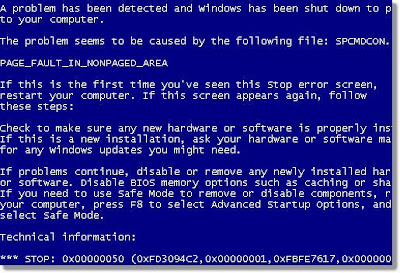
The Windows Blue Screen of Death (BSOD) is famous for its unclear meaning except that your computer may never be the same again. The BSODD can result from a number of system conditions that are often difficult to troubleshoot. Here you have some tips for how to stop the Blue Screen of Death: fixing the 10 most common causes of the problem will help you recover from this challenging issue.
1. Get the error number - Most BSOD errors list a numeric error code that will help you research the problem online. Look up the number online using a different computer and see if Microsoft or tech forum has information about the error. If you find actionable information about your BSOD error code, take corrective action.
2. Reboot - If you have ever phoned technical support, you know that this is a favorite solution for many “technicians” who have no idea about how to solve a problem. Go ahead and reboot your computer: today might be your lucky day.
3. Look for triggers - If you’re fortunate enough to be able to restart your computer, pay attention to what happens before the BSOD recurs. This can give you clues as to the cause of the error. For example, if you get the Blue Screen of Death when you start your scanner software, you can try disconnecting your scanner.
4. Boot into safe mode - If your BSOD allows you to boot, try starting the computer in safe mode. This will allow you to eliminate unnecessary drivers and programs that could be causing the BSOD problem.
5. Random BSOD crashes could be caused by heat - If you can, open your computer, blow out the dust, from off your components and make sure your CPU and case fans are working.
Read Complete Article : →
1. Get the error number - Most BSOD errors list a numeric error code that will help you research the problem online. Look up the number online using a different computer and see if Microsoft or tech forum has information about the error. If you find actionable information about your BSOD error code, take corrective action.
2. Reboot - If you have ever phoned technical support, you know that this is a favorite solution for many “technicians” who have no idea about how to solve a problem. Go ahead and reboot your computer: today might be your lucky day.
3. Look for triggers - If you’re fortunate enough to be able to restart your computer, pay attention to what happens before the BSOD recurs. This can give you clues as to the cause of the error. For example, if you get the Blue Screen of Death when you start your scanner software, you can try disconnecting your scanner.
4. Boot into safe mode - If your BSOD allows you to boot, try starting the computer in safe mode. This will allow you to eliminate unnecessary drivers and programs that could be causing the BSOD problem.
5. Random BSOD crashes could be caused by heat - If you can, open your computer, blow out the dust, from off your components and make sure your CPU and case fans are working.
Wednesday, May 11, 2011
Starting today, people have the ability to tag Pages in their photos on Facebook in the same way they can tag their friends. Photo tagging for Facebook Pages enables people to share richer stories with friends about the things they interact with in the real-world, such as businesses, brands, celebrities, and musicians.
A Page can be tagged anywhere that someone can view a photo in the photo viewer. These photos will appear on the Photos tab on the Page, and not on the Wall. In addition, a Page can be tagged by anyone on Facebook, not just people who have Liked your Page.

For now, only Pages within the Brands & Products or People categories brands, can be tagged in photos. We're looking to expand this functionality to more Page categories over time.
To tag a single photo you are viewing:
- Click the photo you wish to tag and select "Tag This Photo" below the photo.
- Type the name of the people or product Page you wish to tag.
- Repeat this process for every Page in the photo that you would like to tag.
- Click "Done Tagging" in the bottom left corner.

The privacy of the photo is always respected when a Page is tagged in a photo. If a photo post is published to “everyone,” then it can appear publicly on the Photos tab of the Page and the Page admins can see it. If it’s just published for someone’s friends, only their friends will be able to see that photo. Page Admins can always choose to disable tagged photos from appearing on the Photos tab by going into Edit Page > Posting Options > and unchecking “Users can add photos”.
What is this all about? This is about shortening your URL so you can have less characters on the link. It makes us easier to post on blogs or forums, make email friendly URLs, simplify links to your website and hide an affiliate link.
There’re lots of URL shortener on the web, let’s just take an example, we’re gonna try http://z.pe here. Follow these steps :
1. Prepare the url you want to shorten, i have an example :
http://www.facebook.com/xnyss
2. Go to http://bit.ly/
2. Put the long url to the textbox
3. Click Shorten It!
4. There you go, you will get the shortened URL : http://on.fb.me/mroG2G
5. You can even make it shorter again by removing the http: protocol, so http://on.fb.me/mroG2G will be come on.fb.me/mroG2G
Additionally, here are some url shortener service you can use :
- http://is.gd
- http://goo.gl/
- http://bit.ly/
- http://goo.gl/
- http://bit.ly/
- and you can find many more on the web..

- :3 - :o - :) - :( - :D - :p - :v:putnam: - :/ - :42: - ^_^ - (^^^)- <(") - :|] - >:) - :* - :'( - <3
1: Want to make your text bold in Chat ?
2: Want to make your text bold + underline in Chat ?
3: Want to make your text underlined in chat ?Bold your Text in Facebook Chat :
Its very simple just add * before and after your text / sentence in Chat like this
*Hii This is XnYs* = Hii This is XnYs
Unerline your Text in Facebook Chat :
Its very simple just add _ before and after your text / sentence in Chat like this
_Hii This is XnYs_ = Hii This is XnYs
Bold + Underline your Text in Facebook Chat :
Just add *_ before and after your Text like this
*_Hii This is XnYs_* = Hii This is XnYs
These are the facebook smileys which people uses most during their chat conversation!
Facebook only ..!
Just try these in your chat conversation and feel cool !
Tuesday, May 10, 2011

Many shortened URL redirection out there sometimes makes us confuse about how to see the real URL shared by people around us. We should be careful indeed when we click those URL, as we dont really have any idea where the URL will be redirected exactly. We can actually see the real URL from some URL redirection services like goo.gl, tinyURL or bit.ly if we know how to.
Below, i’m gonna share a little trick on how to see the real URL of this kind of shortened URL. URL Redirection Checker Tool is also available to use for free at the end of this post. I made this tool just to check where any suspicious URL will go. Ok, lets talk about some famous URL shortened services, and the trick how to peek the real URL :
- Goo.gl
Normally, when people shorten their URL using goo.gl, we can see the info of the URL by adding “/info/” before the last URL code, for example :
- This URL : http://goo.gl/rgg8a
- We can see the info at this URL : http://goo.gl/info/rgg8a - TinyURL.com
Simply add preview before the real URL, for example :
- This URL : http://tinyurl.com/6f9se2g
- We can see the real URL at this URL : http://preview.tinyurl.com/6f9se2g - Bit.ly
We can even the real URL by adding “+” char at the end of the sortened URL. For example :
- This URL : http://bit.ly/hRqjAW
- We can see the real URL at this URL : http://bit.ly/dRC0YF+
OK, now you at least know how to see the real URL, but what if the URL is shortened many times plus by different URL shortened services? Will you check them one by one? That’s why i made this tool below to help you analyze where the URL will go. Please notice that this tool will not work for pushed to click, javascript or meta redirect like adf.ly or lnk.in.
URL Redirection Checker
Result :
Thanks To Crazydavinci.Net
Saturday, April 30, 2011
Facebook has launched its new .. It is Better then the old system ..
Have a Look on These Below ..!!


Want this to your acount ???
Go to Here :
Click on " Request an Invitation " Button
Wednesday, April 27, 2011
The Send Button, Because Sometimes It’s Private
Just over one year ago, we introduced the Like button to help people share worthwhile things with all their friends. But there are many times when people want to share something with just certain people. So today, we’re introducing the Send button, the easiest way to privately share things with groups and individuals.
How It Works
The Send button is a social plugin that websites can use to let people send a link to a friend through Facebook Messages, post it to a Group, or email it to an individual. For example, if you see a Mother's Day gift idea on 1-800-Flowers.com, you can now send a message or email to your family members to discuss. Or say you're training for a marathon and you come across a great article about running shoes on The Huffington Post. Now you can share it with your entire running group in just one click.
The Send button is a social plugin that websites can use to let people send a link to a friend through Facebook Messages, post it to a Group, or email it to an individual. For example, if you see a Mother's Day gift idea on 1-800-Flowers.com, you can now send a message or email to your family members to discuss. Or say you're training for a marathon and you come across a great article about running shoes on The Huffington Post. Now you can share it with your entire running group in just one click.
The Send button drives traffic by letting users send a link and a short message to the people that would be most interested. They don't need to leave the web page they’re on or fill out a long, annoying form. Compared to the alternatives, the Send button has fewer required steps, and it removes the need to look up email addresses by auto-suggesting friends and Groups.

We designed the Send button to be used alongside the Like button. By including both on your website, people will have ability to broadcast the things they like and also send it to specific people.
How to Add the Send Button
The Send button can be easily added to existing Like buttons or as a standalone feature. Developers currently using the XFBML Like button can include the send="true" attribute in their Like button code to generate a combined button, and those using an iFrame version of the Like button will need to upgrade to XFBML to display a Send button. The following code will generate a combined Like and Send button:
The Send button can be easily added to existing Like buttons or as a standalone feature. Developers currently using the XFBML Like button can include the send="true" attribute in their Like button code to generate a combined button, and those using an iFrame version of the Like button will need to upgrade to XFBML to display a Send button. The following code will generate a combined Like and Send button:
<div id="fb-root"></div>
<script src="http://connect.facebook.net/en_US/all.js#xfbml=1"></script>
<fb:like href="example.com" show_faces="true" width="450" send="true">
</fb:like>
Developers can add a standalone Send button with the following code:
<div id="fb-root"></div>
<script src="http://connect.facebook.net/en_US/all.js#xfbml=1"></script>
<fb:send href="example.com"></fb:send>
Learn more about adding a combined Like and Send button or just the Send button. Also, we strongly recommend using Open Graph meta tags on your web pages to control the title, description and image displayed when people use the Send button.
Real-time Metrics
In the coming days, we will provide real-time metrics for the Send button in the Insights Dashboard. Once youclaim your domain, you will be able to access the number of Send button impressions, messages, and referral clicks sent to your site.
In the coming days, we will provide real-time metrics for the Send button in the Insights Dashboard. Once youclaim your domain, you will be able to access the number of Send button impressions, messages, and referral clicks sent to your site.
We launched the Like button a little over one year ago, and it is already on millions of sites across the web. The Send button is launching on 50 sites today, and we look forward to seeing the list grow in the coming weeks. We're excited to offer people an easy way to share with small groups of people and give developers a new way to generate engagement and drive traffic to their websites.
Abe, an engineer on Facebook Platform, is sending this to his mom and all his friends.
 |
Subscribe to:
Posts (Atom)


